
← Back to homeFeatures 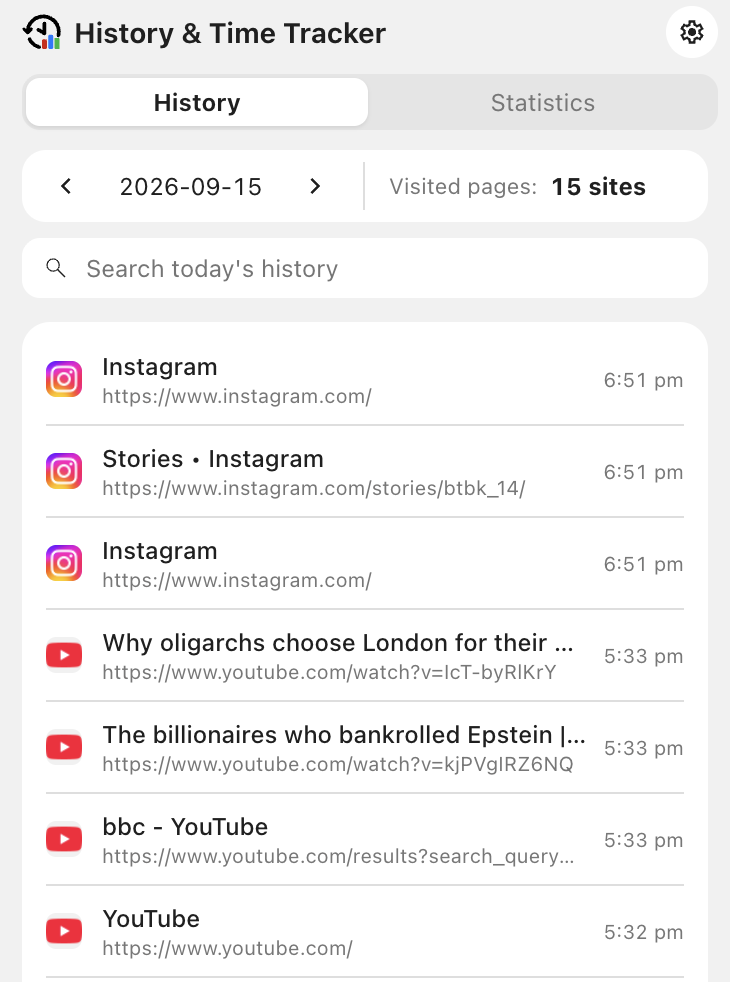
History, browsing statistics, and data management
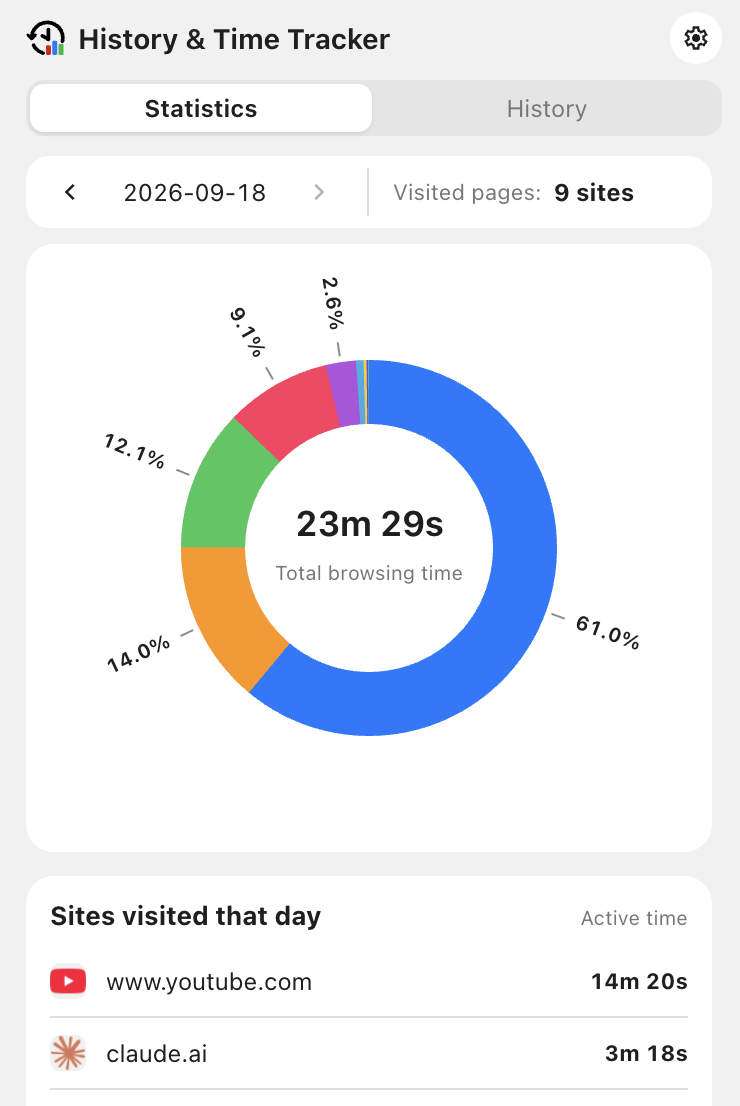
Popup
- Click the extension icon to view history and browsing statistics for a selected date.
- Search that day's records on the History tab, or review active time and share of browsing time on the Statistics tab.
- Choose whether the History or Statistics tab appears first.
- Disable the popup to open the full extension page directly from the extension icon.
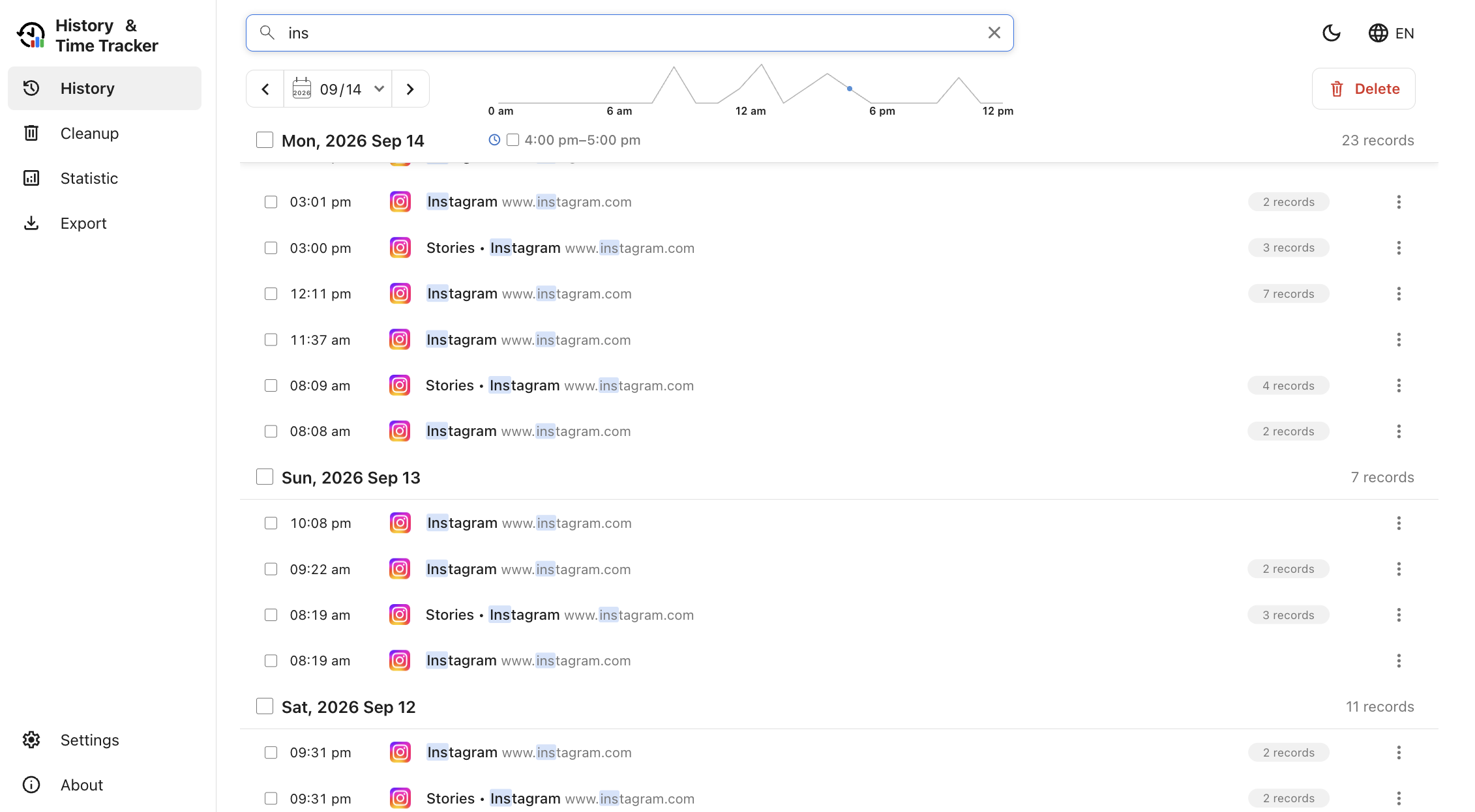
History and search
- Select a date from the calendar and use the hourly chart to locate a time period.
- Search records by title, domain, or URL.
- Group repeat visits and inspect the time and active duration of each visit.
- Import the history currently retained by Chrome on first use, then continue saving new visits.
- When automatic cleanup is off, records remain until you delete them or remove the extension's local data.
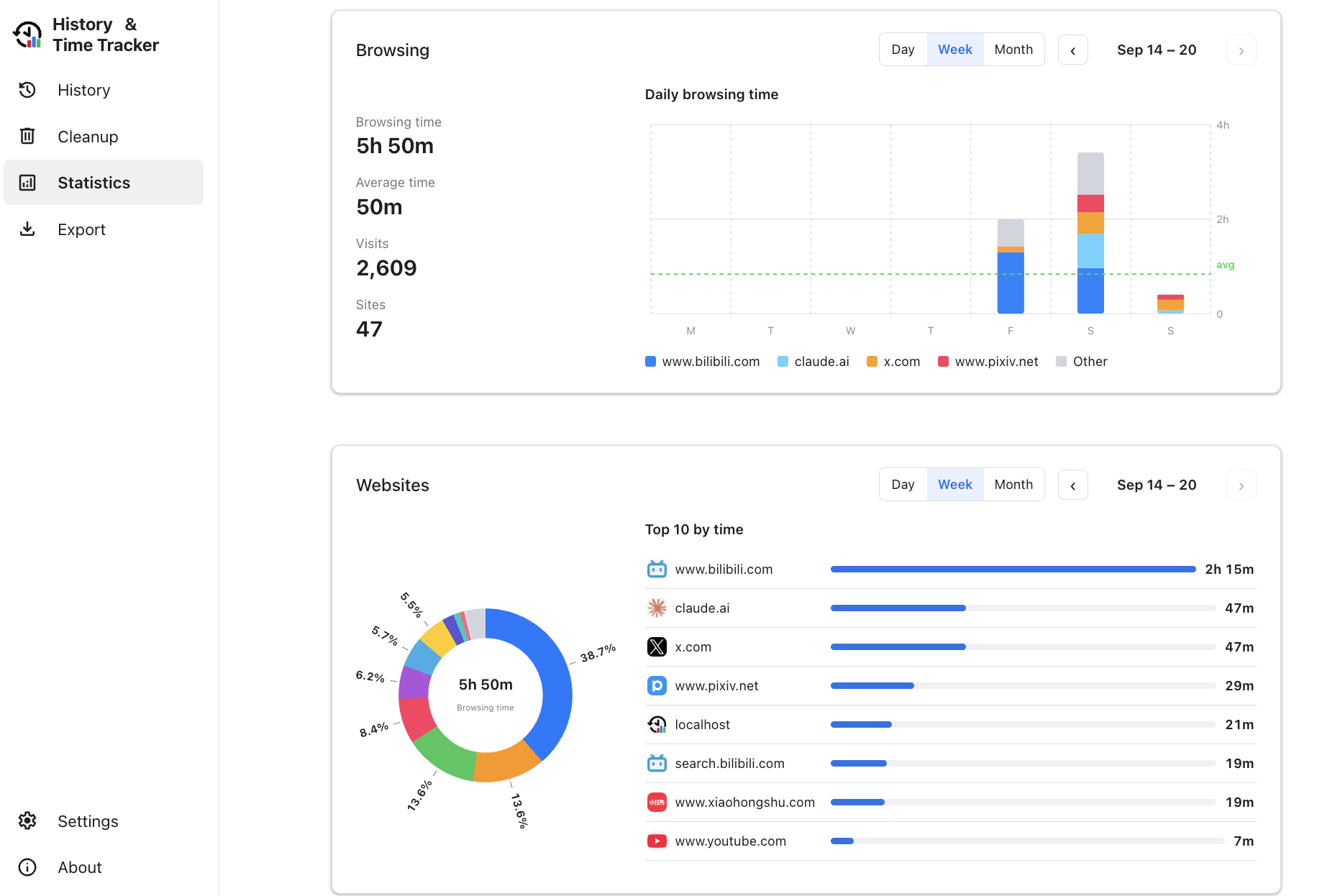
Browsing time and visit statistics
- Review active time, visit count, and number of websites by day, week, or month.
- See activity by time of day, share of browsing time, and Top 10 websites.
- Select a domain in Lookup to view its record count and browsing time.
- View hourly activity for a day or a visit heatmap for a week or month.
- Browsing time is an estimate of active use. Imported history does not include browsing time.
Browsing data management and cleanup
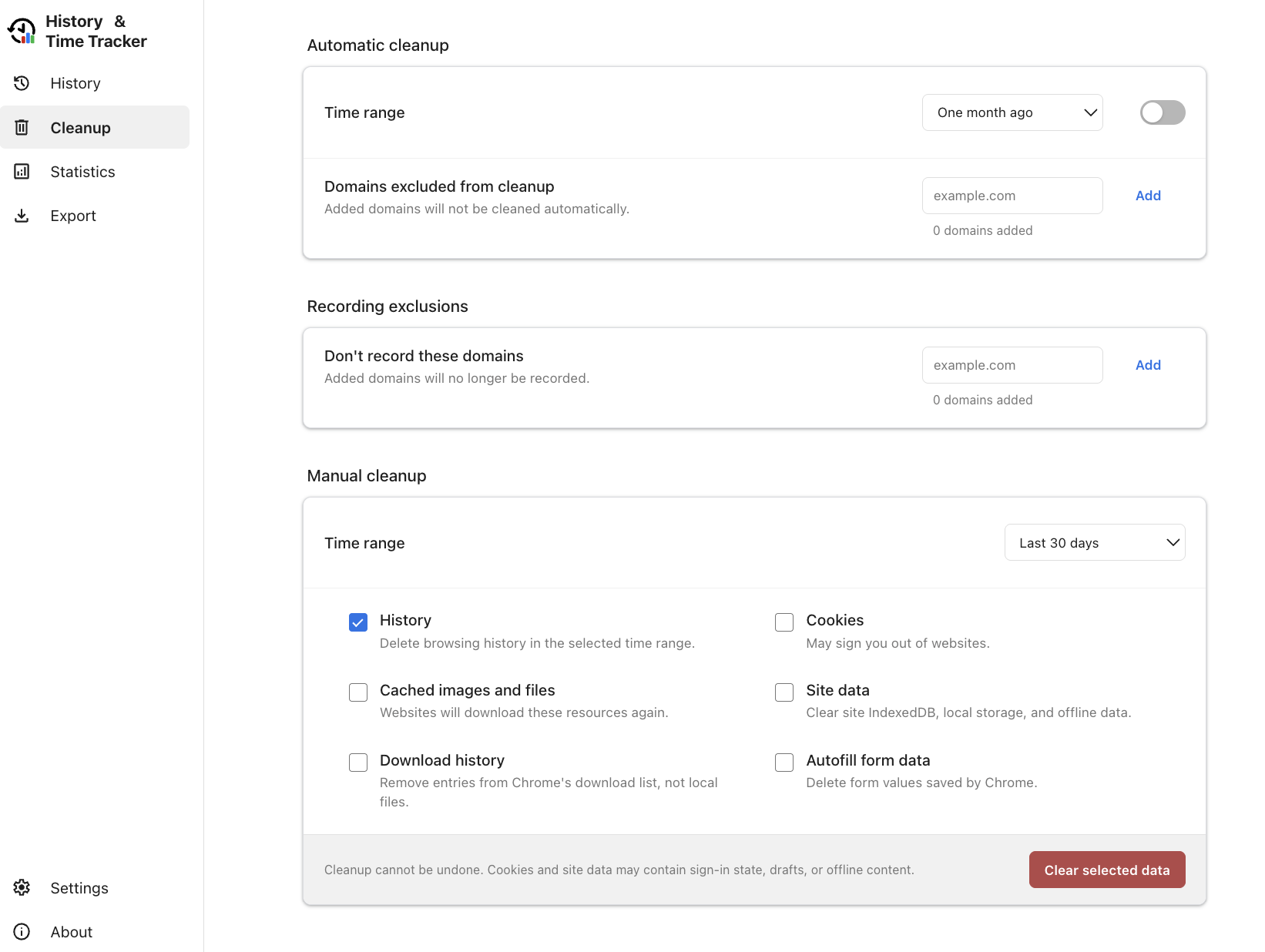
- Automatic cleanup is off by default, with retention options from one week to six months.
- Use domain lists to stop recording selected sites or preserve their records during automatic cleanup.
- Manually clear history, cookies, cache, site data, downloads, and form data for a selected time range.
- Export a date range as CSV from the Export page, using grouped or detailed records.
- Domain retention rules apply only to extension records, not to Chrome history cleared by time range.